Often, yes—but the quality of an enlargement depends on the original photograph, the detail captured during scanning and the size you want to print. Tell your scanning provider about the intended enlargement before the scan is made. Simply changing a file’s “DPI” number afterwards does not add genuine image detail.
Why does the intended print size matter?
A digital image contains a fixed number of pixels across its width and height. Printing it larger spreads those pixels over more inches. Adobe explains that enlarging the physical print size without adding pixels reduces the pixels per inch, or PPI.
Scanner software commonly describes its capture setting in DPI. For planning an enlargement, the useful question is: how many pixels will the scan contain, and how many does the printer want at the finished size?
Epson’s guidance illustrates the principle: if you scan at the original size and plan to double the dimensions later, increasing a 300 DPI scan setting to 600 DPI provides more pixels for that enlargement.
What would that mean for a 6 × 4-inch photograph?
Here is a calculated example, not a Rewind Digital service specification:
A full 6 × 4-inch print scanned at 600 DPI produces approximately 3,600 × 2,400 pixels. Those dimensions support a 12 × 8-inch print at 300 PPI without adding pixels.
That is twice the original width and height. Adobe recommends 300 PPI for high-quality printing unless the printer requires something different. Ask your chosen printer for its requirements rather than treating one number as a guarantee.
Will a higher-resolution scan make a blurry photo sharp?
Do not assume it will. A larger pixel count is not proof of more useful detail in the original.
Adobe notes that ordinary upsampling estimates additional pixels and cannot add detail absent from the source image. Scanning and enlarging should therefore be distinguished from restoration or enhancement, which are separate questions—not automatic results of digitisation.
For a treasured photograph, consider a small test print before ordering a large display print. Judge the faces and important details at the size you actually want.
What if I only want to enlarge one person?
Cropping uses only part of the scan, so the full image’s pixel dimensions can be misleading. A tiny face within a group photograph may leave much less data for an enlargement.
Before scanning, note:
- The original print’s approximate dimensions.
- Your intended finished print size.
- Whether you want the whole picture or a specific crop.
- Any cracks, fading, fragility or attachment to an album.
Keep the full scan unchanged and make crops from a separate working copy. Do not cut or trim the original photograph.
What should I confirm with Rewind Digital?
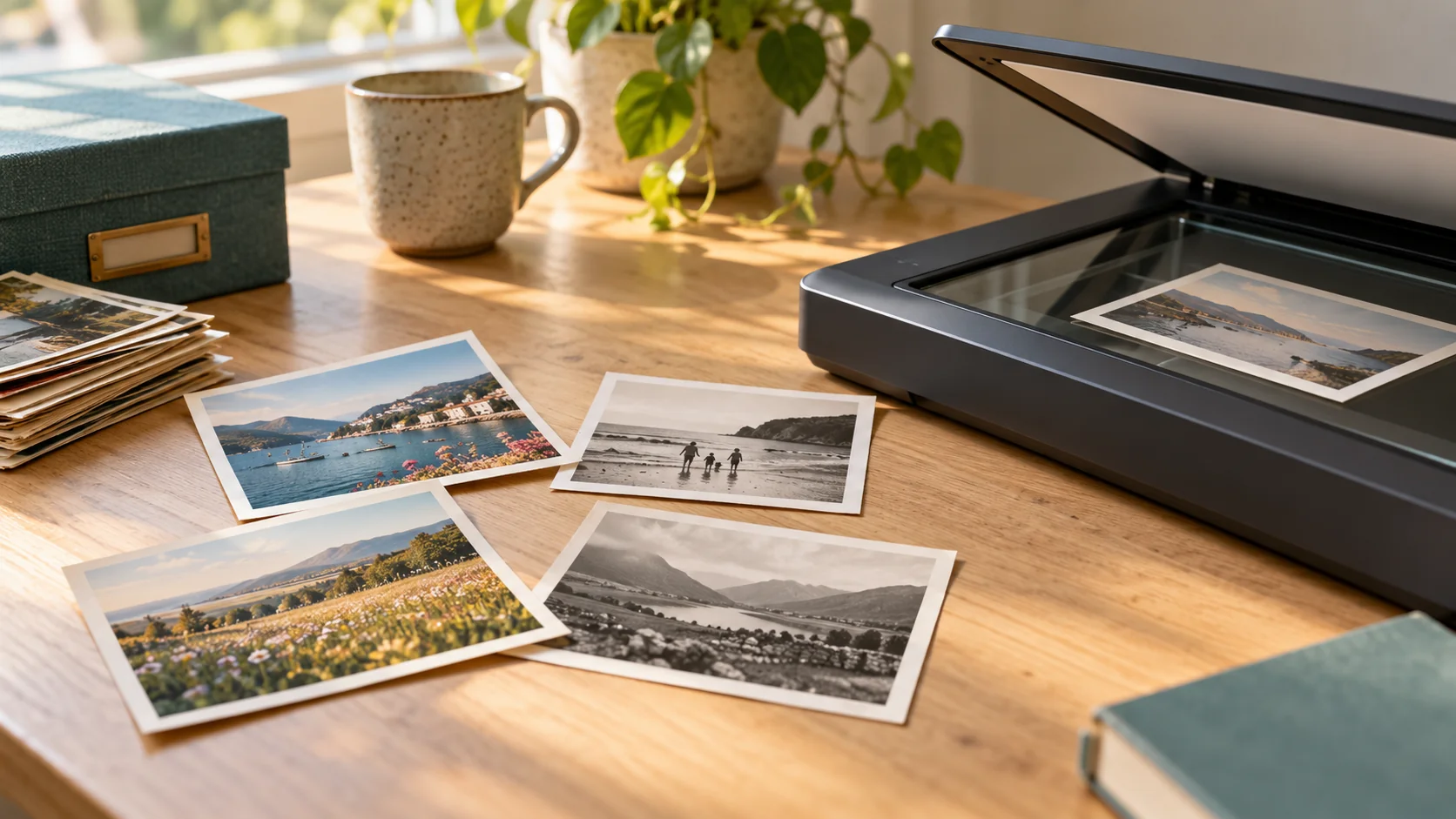
Our confirmed photo-scanning service covers loose printed photographs. Mention your enlargement plans so suitable scan settings and practical limits can be discussed before work. Printing, restoration, albums, slides and negatives are not included as standard services.
Check current prices and request an estimate. Drop-off and return of originals are by appointment in Tadcaster. The form saves a request, not an online payment; the final quote is agreed before scanning starts.